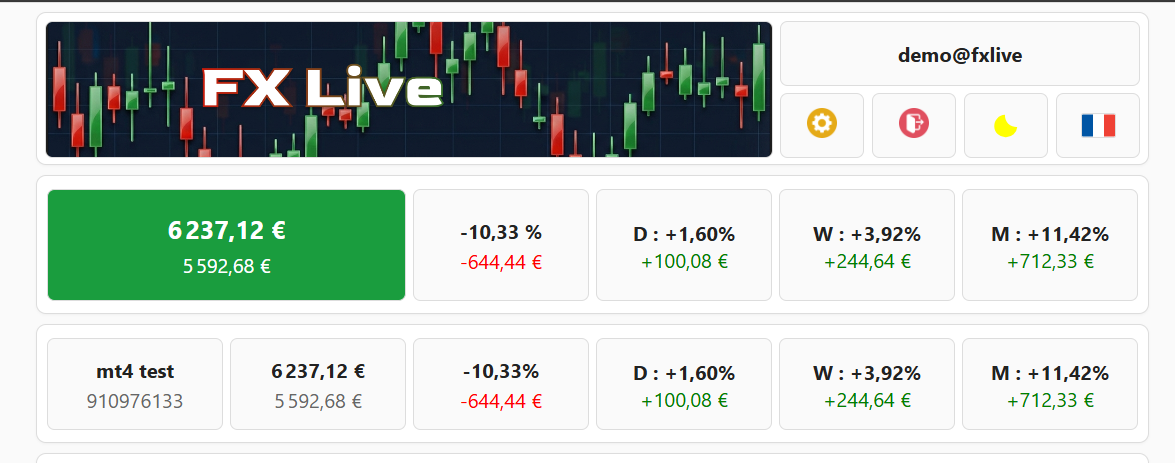
The site retrieves data from your MT4/MT5 accounts via the Stats-Export EA, which sends them directly from your MetaTrader 4 and 5 instances
They are then displayed on the FX Live.trading website and you can view the details of each account individually
The installation is very simple and takes three steps ->> below
To connect your trading account, install the FX Live Stats Export EA on your MetaTrader terminal and enter your API key during setup.
Recommended: install from the MQL5 Market
Future updates will be offered to you automatically inside MetaTrader every time we release a new version — no manual re-download needed.
Download FX Live Stats Export for MT4 (latest version 8.10) here »
Download FX Live Stats Export for MT5 (latest version 8.10) here »
REQUIRED TERMINAL SETTINGS
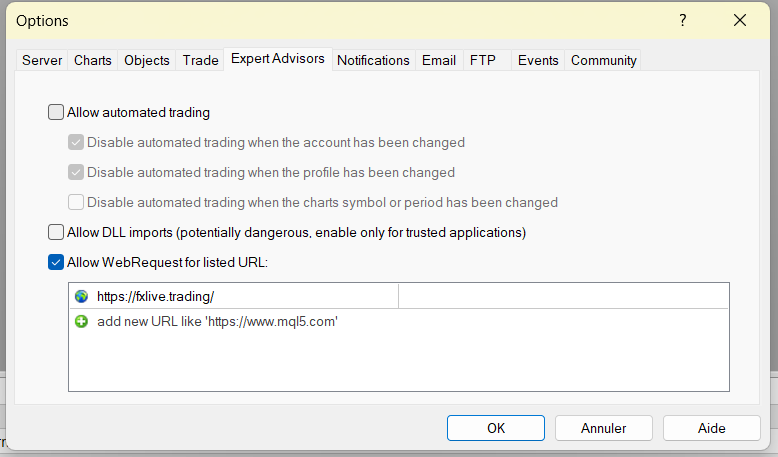
In MetaTrader: Tools → Options → Expert Advisors
✓ Allow DLL imports
✓ Allow WebRequest for listed URL:
In the "Account History" tab at the bottom of the terminal, right-click and select "All history". Without this step, the EA only sends the trades displayed locally (often just the current month), not your full history. MT5 is not affected.
Your API key is waiting in your free account
The Stats Export EA sends your account data to FX Live with your personal API key. Create your free account (one minute): the key appears here, ready to copy, and you can follow this guide to the end.
a) Download the version of Stats-Export that matches your MetaTrader version (MT4 or MT5)

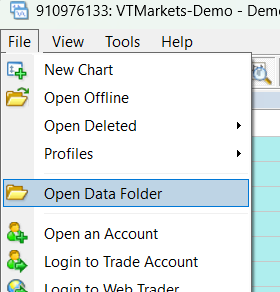
b) In MetaTrader, go to "File" > "Open Data Folder". A file explorer window opens.
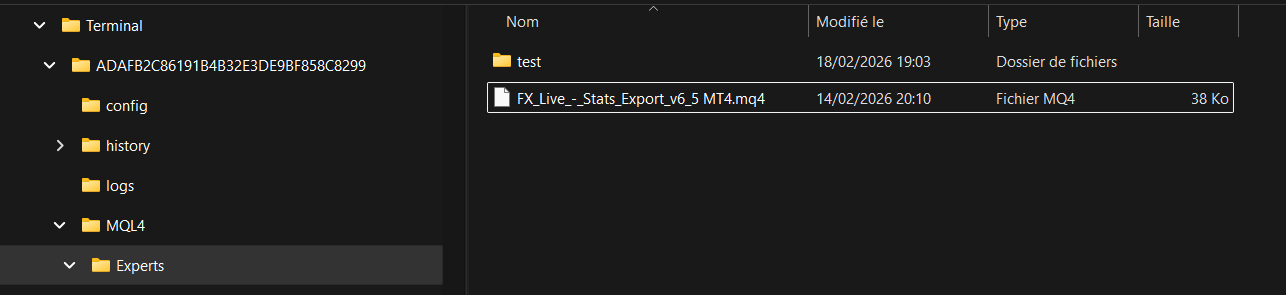
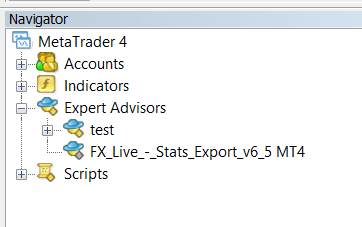
c) Copy/paste the Stats-Export_vxx.ex4 or Stats-Export_vxx.ex5 file into the "MQL4/Experts" folder
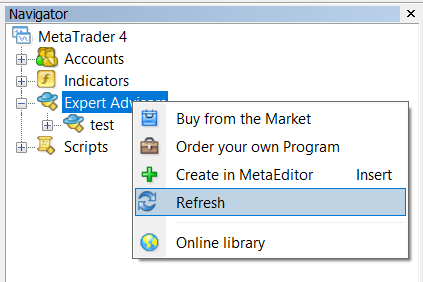
d) Right-click on "Expert Advisors" in the "Navigator" panel and click "Refresh"
a) Click "Tools" > "Options" > "Expert Advisors" and check the "Allow WebRequest" box
b) Enter the address "https://fxlive.trading/" and click "OK"
a) Open a chart, for example BTCUSD (this pair stays open on weekends and allows ticks to update) on H1 (but it doesn't matter)
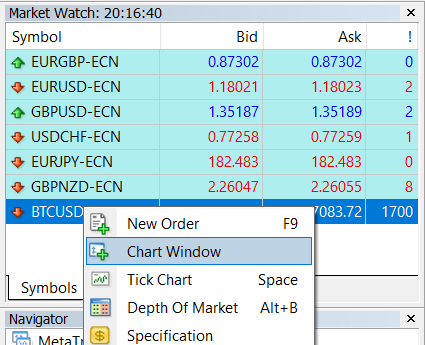
b) Drag the "Stats-Export" EA onto the chart or right-click > "Configure" on the EA
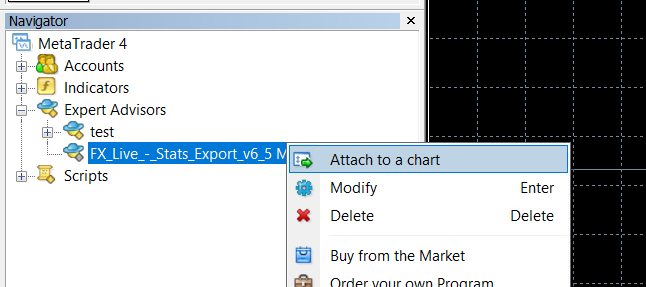
c) In the "Name" field, enter whatever you want — this is the label that will appear on the homepage and in the options to identify your account
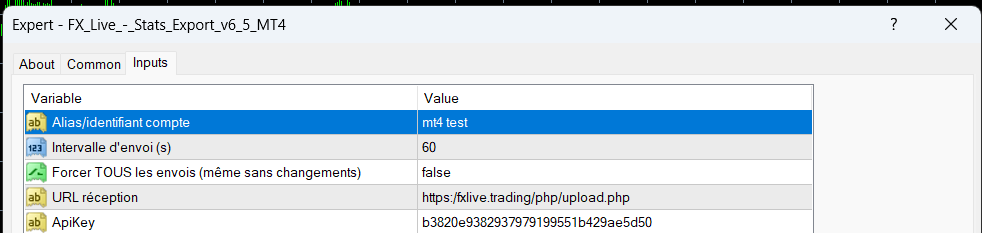
d) Copy your API key from the dashboard on fxlive (click on the box, the key is automatically copied to your clipboard)
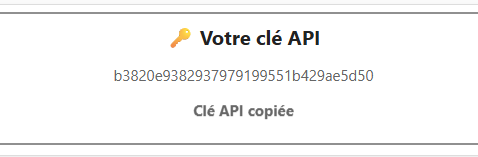
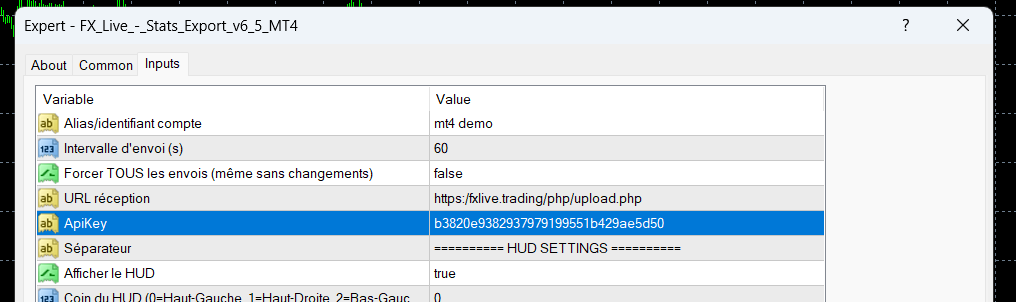
e) Click OK. The first send is instant and the dialog box will show "Send status ok". If not, make sure you have allowed web requests in the MetaTrader options
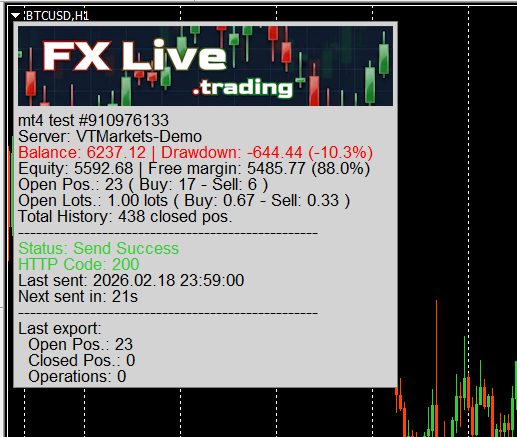
f) IMPORTANT — MT4 only: in the "Account History" tab at the bottom of the terminal, right-click and select "All history". Without this step, the EA only sends the trades currently displayed locally (often just the current month), not your full history. MT5 is not affected, it sends the full history regardless of the displayed filter.
a) The account appears and becomes manageable in the dashboard
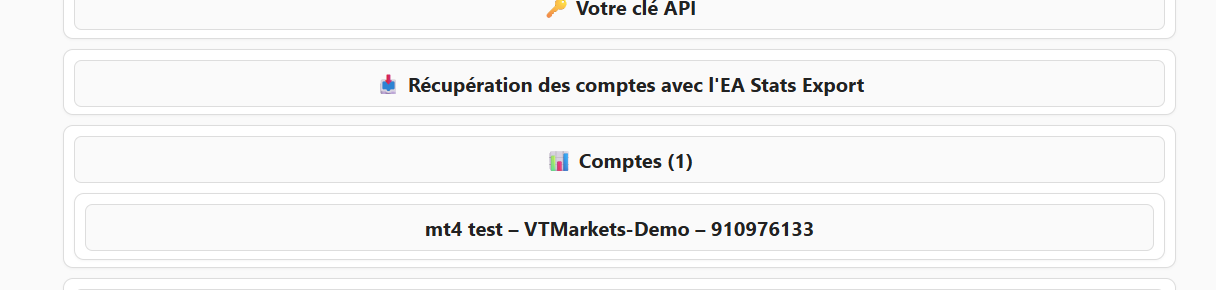
b) And all your info is visible on the homepage