A new version of the FX Live Stats Export EA is available on the MQL5 Market: v7.66 for MT5 and v7.65 for MT4. It measures the slippage at the opening of your positions and fixes data uploads on Windows systems set to another language. Slippage measurement only concerns MT5, which is why the MT4 version stays at 7.65; the site shows the expected version of each account based on its platform.
MT5 (v7.66) — Slippage at opening
Slippage is the gap between the price you asked for and the price you actually got. For every new position, the EA now sends the requested price, and FX Live computes the slippage from it. To see it, hover the open price of a position, open or closed, on an account or portfolio page: a tooltip shows the slippage (in pips for forex, as a price gap for gold, indices or stocks), its equivalent in money and the requested price. Positive slippage is in your favour, negative slippage cost you.
The measure is exact for pending orders (limit, stop) that became positions. For market orders, the reference price is the market price at the moment of execution. On MT4, the slippage of pending orders is already computed by the site, no update needed.
MT4 and MT5 — Windows in another language
Data is now always sent in UTF-8. On a Windows system set to another language (a Chinese VPS, for example), a broker name, account name or comment with non-Latin characters could block every upload. Special characters in comments are handled better too.
Update
If you installed the EA from the MQL5 Market, the update is automatic.
Otherwise, download the .ex4 / .ex5 files again
from your dashboard
and replace them in the MQL4/Experts or MQL5/Experts
folder of your terminal.

The Portfolio Lab moves to version 1.1, with three new features to read the chart in more detail. Click the version number, at the top right of the tool, to see the list of changes at any time.
One curve per strategy
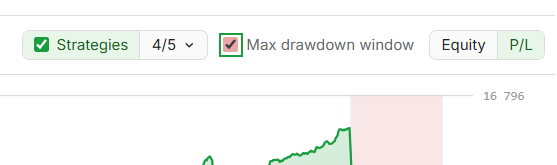
The "Strategies" box above the chart shows the curve of each selected strategy on top of the overall curve. The arrow next to it opens the list of curves: one box per strategy to show them one by one, and their colour works as the legend. The tooltip gives each one's gain. Only the chart changes: to remove a strategy from the total, untick it in the bottom panel.
Period filter
The "Custom period" button in the top bar opens two calendars to pick the start and the end. The chart, the correlation matrix, the calendar and the bottom tables then only cover that period. "Common period" sets the dates to the period when all ticked strategies trade at the same time: handy to compare two EAs or two backtests.
Equity or P/L
A two-way button above the chart switches between the equity curve (starting balance + gains) and the cumulative profit and loss alone.
Open the Portfolio Lab — your feedback is always welcome.
The Portfolio Lab is a new free tool in the FX Live suite to analyse your backtests and your live trading results. It keeps what we like about a tool such as Quant Manager, and goes further.
The essentials at a glance
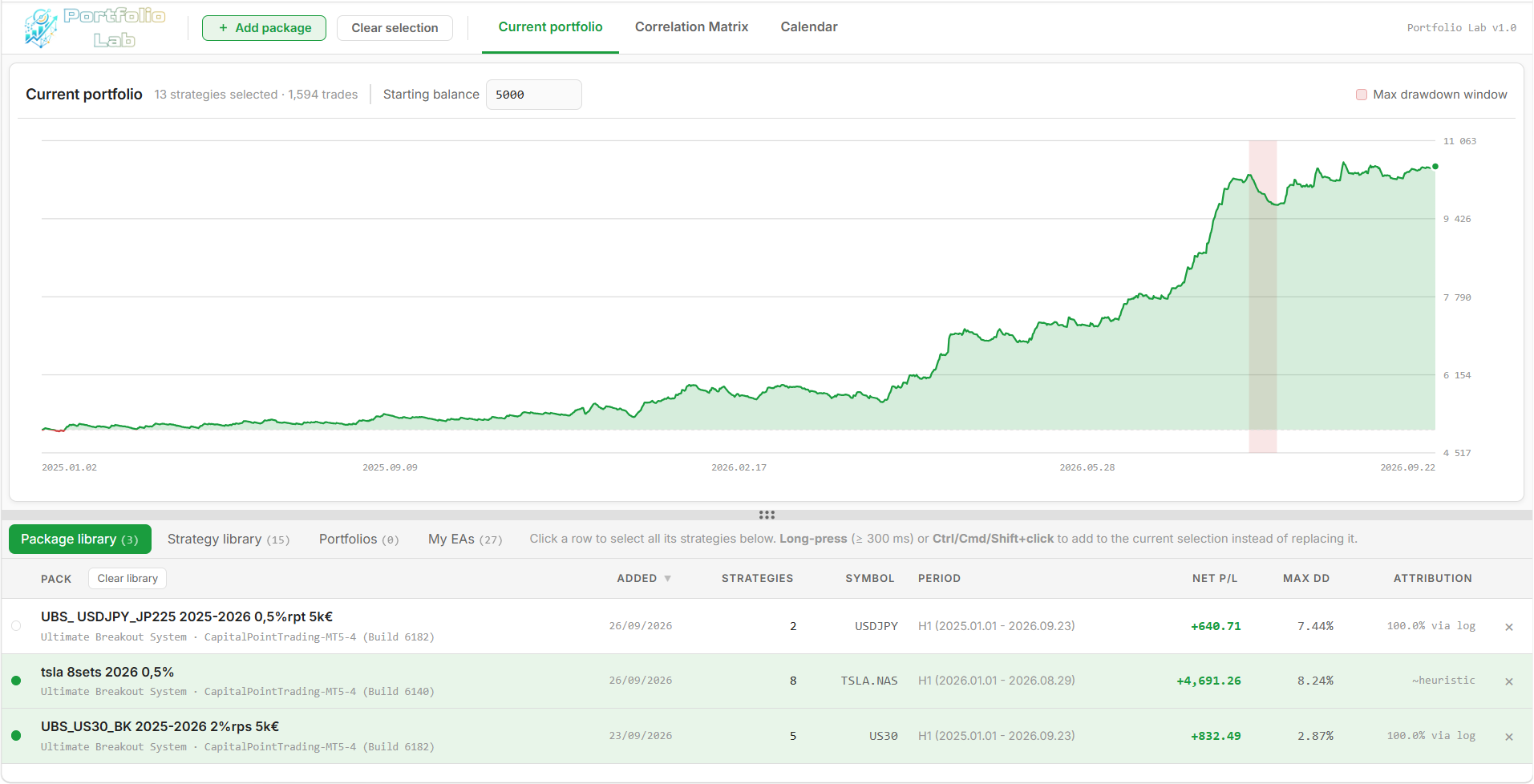
- The equity curve and the drawdown periods.
- The key metrics: Profit Factor, Recovery Factor, max drawdown, win rate, Sharpe…
- Portfolios that combine several strategies, to see which ones contribute the most (or the best) to the P&L.
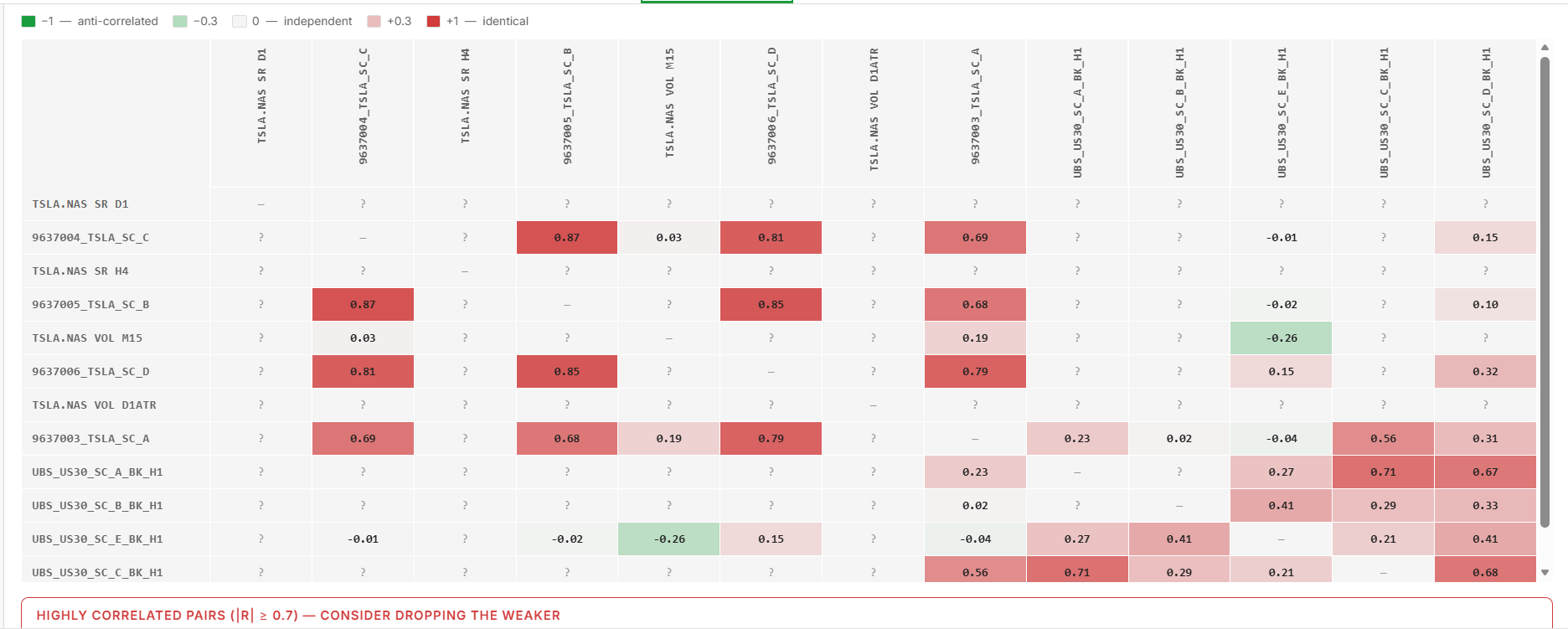
- A correlation matrix to spot strategies that lose at the same time.
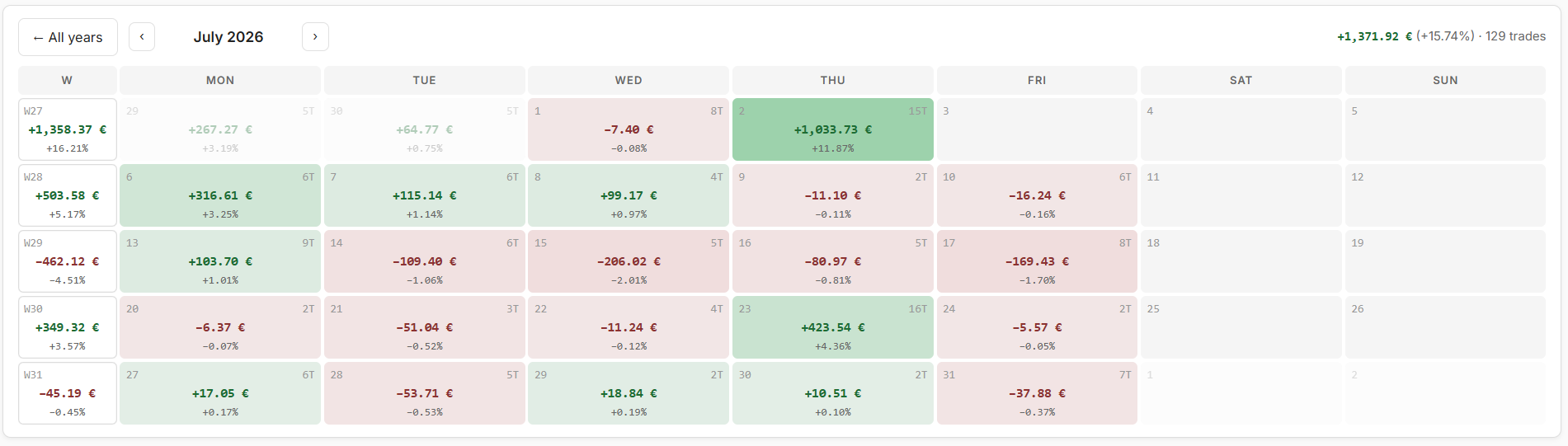
- A calendar of results by year, month, week and day.
For UBS users
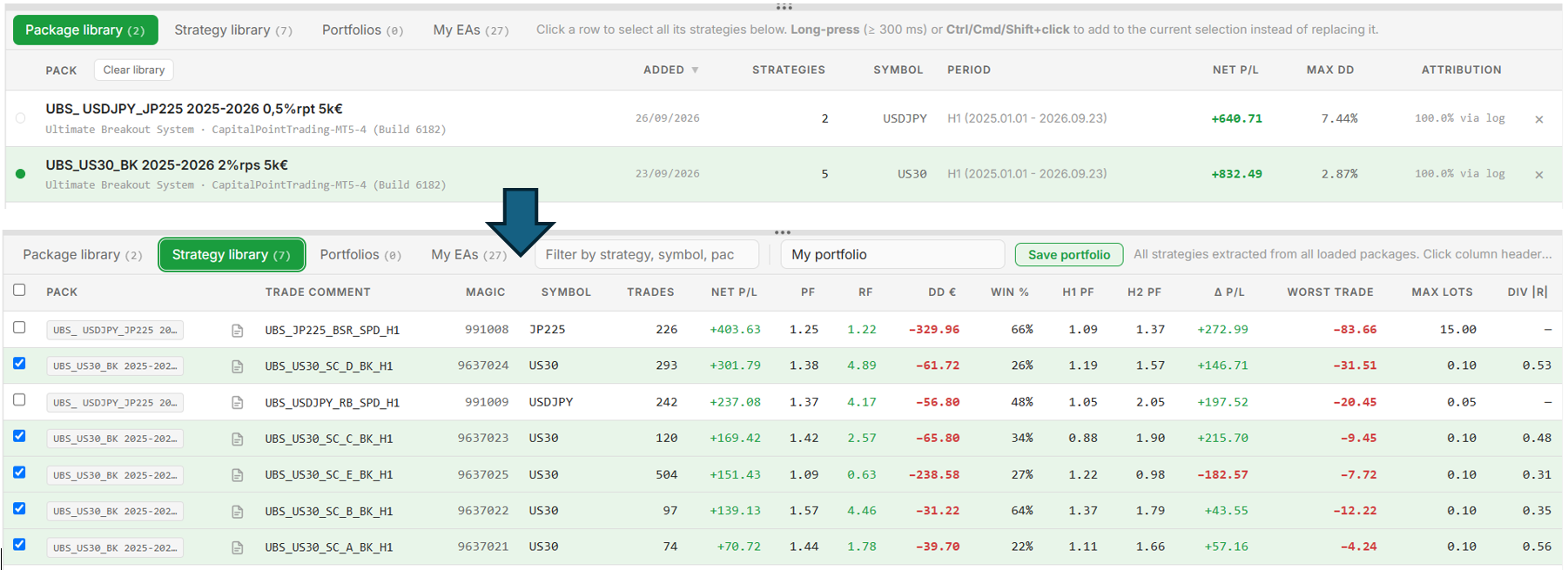
Import a report from the Autoloader: the tool identifies each setfile used
and offers a strategy-by-strategy analysis. It becomes much easier to spot
the best ones and build the best portfolio. A single .html
file is enough; add the .set files and the MT5 logs, and trade
attribution becomes exact.
Your live history
FX Live users who have already imported the data of their MT4/MT5 accounts find their EAs in the My EAs tab, expandable strategy by strategy, to do the same work on their real trades.
No account is needed to analyse your backtests, and everything is processed in your browser: your files are not sent anywhere.
More is coming (trade list, comparing live history with backtests), but the tool is already complete enough for in-depth analysis. Try the Portfolio Lab — all feedback is welcome.
To avoid any confusion, the “Strategies” page becomes “EA”. It now makes more sense to talk about our strategies in terms of the magic numbers they are linked to (via the Magic Database), and then to group them into the sets they belong to — especially when one of our EAs (Expert Advisors) uses several magic numbers to run its strategies.
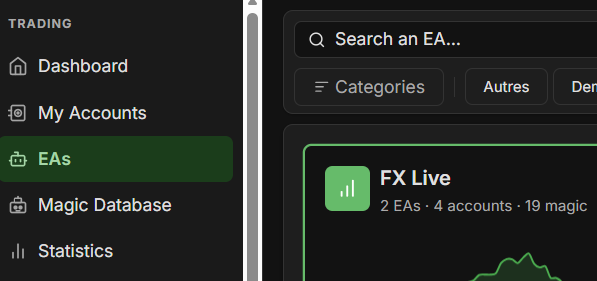
It also paves the way for the new tool of the FX Live suite: the Portfolio Lab. It lets you load and analyse your backtest reports in depth, and also see in detail how the strategies already traded on your MetaTrader accounts behave.
More to come. In the meantime, you can try the tool and find out more here.
Version 7.1 of the MetaTrader Setfile Editor brings several improvements to the tool — and some that you will definitely love.

1. One-click reformat to the UBS 7.6 format
A button reformats your file to the UBS 7.6 format: it applies all the latest parameters and strategies (as if you had loaded a file from an older version into UBS 7.6 and re-saved it).

2. Toggle switches on every boolean
All boolean options (true/false) now have a toggle switch — clearer to read, faster to flip.

3. Rename the file from its comment
A button in the "comment" field lets you rename the file after its comment. Handy for quickly reorganising your folders for the autoloader.

4. Drop-down menus for fields with limited options
Fields with a limited set of options (Risk, Strategy, Timeframe, etc.) now display the selected option and offer a drop-down menu. Drop-downs are also available in batch.

5. "Apply-to-all" replaces the Batch Edit section
The "Batch Edit" section has been removed and replaced by a much easier button that copies the value of a parameter to every other setfile loaded on the page. Much faster to edit many setfiles at once — search for the parameter, edit the first box, apply the value to the others.
Ultimate Breakout System is the best creation of Wim Schrynemakers, developer of Gold Reaper — the #1 EA on MQL5.
Version 7.64 of the EA is now available on the MQL5 Market (both MT4 and MT5). It fixes two issues on closed positions on the MT5 side and adds a safeguard on data upload when Algo Trading is disabled.
MT5 — Stop Loss and Take Profit recorded on closed positions
Until now the SL and TP columns of the closed-positions history stayed empty on MT5 — the EA was sending zero. Fixed: the values are now read from the closing deal and displayed in the table. On top of that, when a position closed exactly at its SL or TP, the corresponding value is shown in color (red for a hit SL, green for a hit TP) — one glance is enough to spot the trades that exited automatically.

MT5 — Total commissions fixed
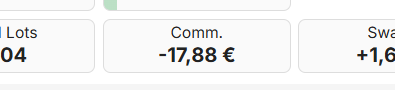
On brokers that charge commission in two steps (once on entry, once on exit), only the "exit" half was being reported to the site. The EA now aggregates both halves and distributes them proportionally on partial closes. The amounts shown in the Commission column match what MetaTrader displays.
"Algo Trading" safeguard
When automated trading is disabled — either via the Algo Trading toolbar button, the Allow Algo Trading checkbox in the EA's per-chart settings, or because the terminal is not connected to the broker — the EA suspends all its uploads (both the position data and the heartbeat). Sends resume automatically the moment every light turns green again. A red message in the HUD spells out the exact reason. Goal: don't mask an EA that's actually stalled behind a stream of data that would otherwise keep flowing, and let the site trigger its disconnection alert when the EA is intentionally — or accidentally — idle.

Updating
If you installed the EA from the MQL5 Market, the update is automatic.
Otherwise, re-download the .ex4 / .ex5 files
from your dashboard and replace them in the MQL4/Experts
or MQL5/Experts folder of your terminal.
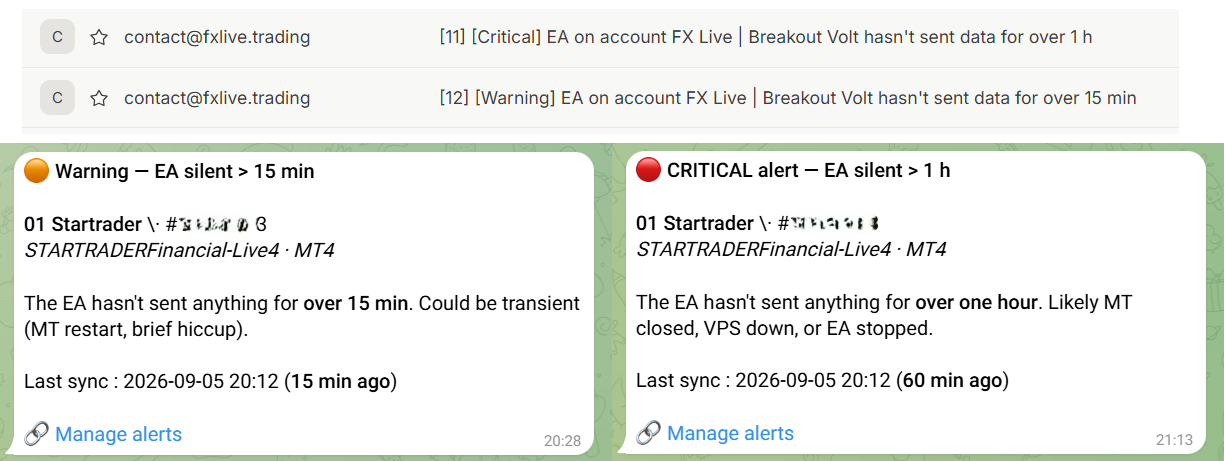
The EA disconnection alert system is now live for all users, alongside the official release of EA v7.63 on the MQL5 Market.
Whenever one of your EAs stops sending data — VPS down, MetaTrader crashed, platform closed without you noticing — you get an alert so you know as early as possible. Two thresholds, to stay reliable without becoming noisy:
- First warning after 15 minutes of silence.
- Second warning after 60 minutes — by this point, something clearly needs your attention.
Alerts arrive via email and/or Telegram, your choice.
How to enable it in 3 minutes
- Update your EA to v7.63 — either via the MQL5 Market
(recommended, future updates arrive automatically) or by downloading
the
.ex4/.ex5files from your dashboard. The system only works from this version onward. - On the « My Accounts » page, click the 🔔 bell next to each account you want to monitor. Each account can be toggled independently.
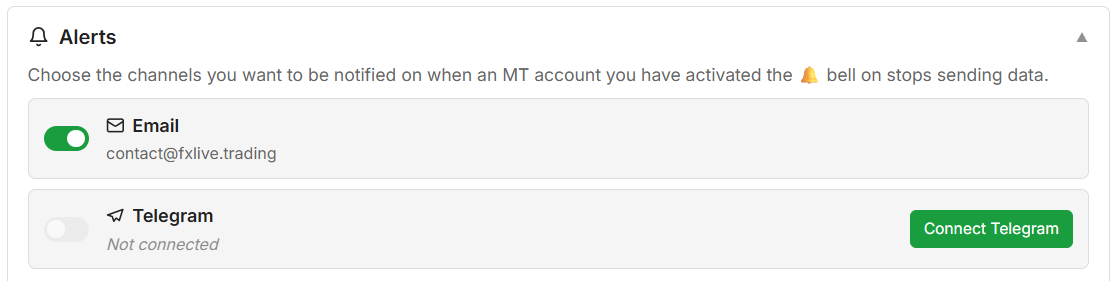
- On your dashboard, open the
« Alerts » box and pick your channels — email,
Telegram, or both. For Telegram, a one-click deep link connects
your account through our bot
@FXLiveAlertsBot; no password required.
Need to be warned faster?
1-minute sync (instead of 5 min) and 1-minute alert reactivity (instead of 15 / 60 min) are available on request. Drop us a line at contact@fxlive.trading, on Telegram @Jaghonn, or on our Discord — we'll work out the setup that fits your use.
On MetaTrader 4 only, the EA can only send the closed positions currently visible in the "Account History" tab at the bottom of the terminal. If you have filtered that tab to "Current month" or any short period, only those trades will be sent — your older trades won't be uploaded to the site until you widen the filter.
What to do, once for all: right-click in the "Account History" tab → "All history". From that moment the EA has access to everything, and you can re-filter the local view later without any loss: the maximum ever seen stays known and the site keeps receiving new trades normally.
EA v7.63 automatically detects when the full history becomes available and triggers a full re-upload at that moment — no need to wait for the next scheduled resync. A red warning also appears in the HUD if your filter is narrower than what has already been sent, so the case doesn't slip through.
MT5 is not affected: its API lets the EA code select the full history regardless of what the terminal displays.
On the pages showing the open positions of an account or the portfolio summary, you can now see the estimated gain or loss — in the account currency and as a percentage of the balance — that the Take Profit or Stop Loss would trigger if hit.
Just hover over the Take Profit or Stop Loss value to see the tooltip.